
How to Crop a PDF Page Online Without Losing Quality
Learning how to crop a pdf page online starts with one counter-intuitive fact: a PDF crop usually hides page edges rather than deleting them, which is exactly why it is lossless and exactly why hidden data can travel with the file. In one line: how to crop a pdf page online means setting a crop window per page or per document, checking what stays behind it, and flattening only when the destination demands true trimming. Get that model in your head and every crop decision, scanner margins, white frames, extracting one figure, becomes a two-minute job.
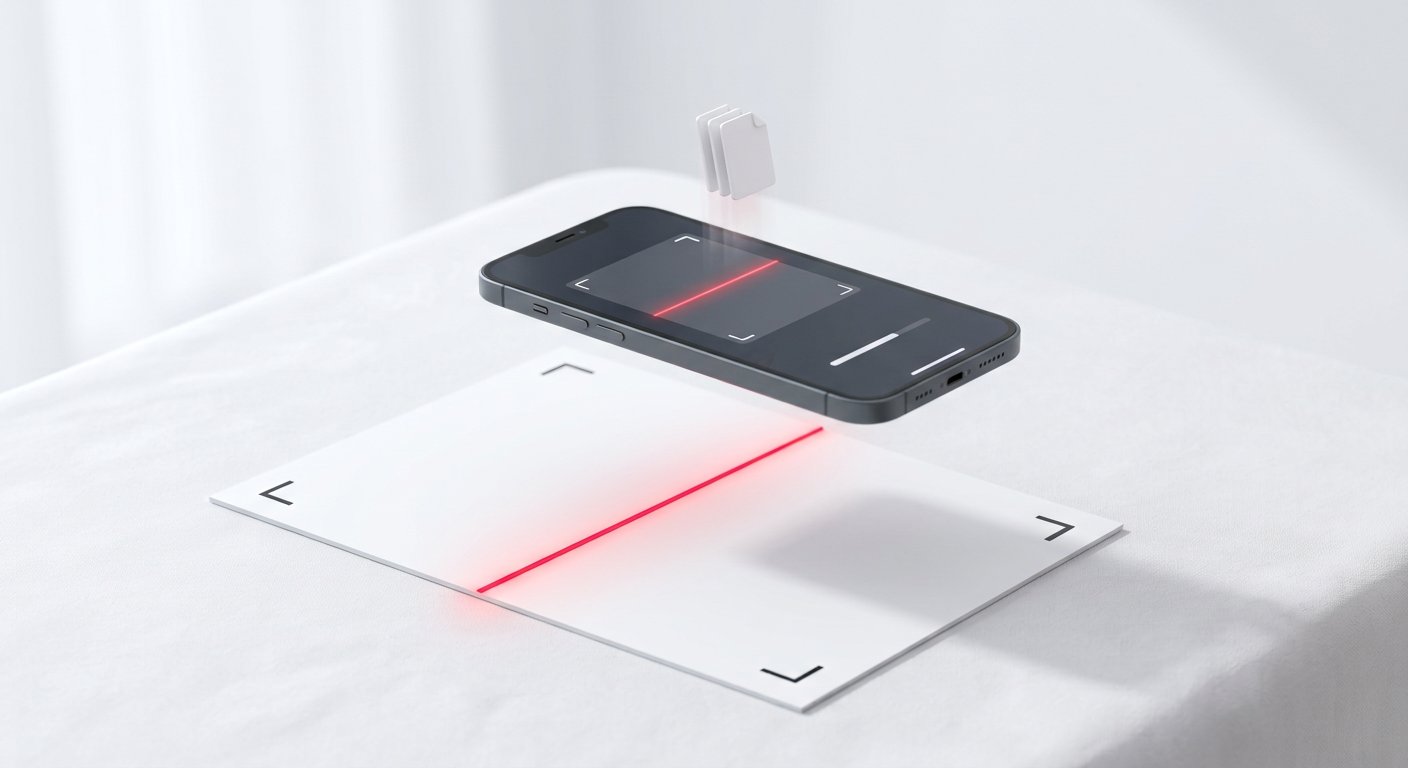
Cropping a PDF is a mask, not a cut
Each PDF page carries several boxes: the MediaBox is the full canvas, the CropBox is the window viewers display and printers honour by default. Cropping moves the CropBox inward. The pixels and vectors outside it remain in the file, invisible but present, which is why a cropped scan can still weigh the same and why a determined recipient can sometimes reveal the margins.
That behaviour is a feature for workflows: you can re-widen a crop later, keep different crops for screen and print, and never degrade an image by re-encoding it. It is a liability for privacy: if the margins contain a stray address or a previous stamp, hiding is not removing. For those cases, flatten or re-render the page after cropping so the discarded area truly disappears.
The three crops people actually need
- Scanner margins: dark edges and feeder shadows around a page; crop a few millimetres in on all sides, uniformly, across the whole file.
- White frames: documents exported from slides or sheets with generous emptiness; crop to content so the page reads like a document, not a poster.
- Region extract: one figure, table or clause needed elsewhere; crop to the region, export that page as an image or a single-page PDF, and keep the original untouched.
- Oversized canvases: CAD or poster exports where the drawing sits in a corner; crop to the drawing so zoom and print behave.
Name your crop before you start, because each has a different tolerance: margin crops want consistency across pages, region extracts want precision on one page.
Cropping in the browser, page by page or in bulk
An in-browser crop tool shows thumbnails with a drag-box over the first page. Set the box once, then choose "apply to all pages" for uniform margins, or step through pages when the content shifts, as scans of a bound book do near the spine.
Because the work happens on your device, confidential files never upload, which is the property you want for contracts, medical papers and unsigned drafts. The export step re-wraps pages without re-compressing their images, so text stays razor sharp; if the tool offers "flatten on export", treat it as the privacy-grade option described above.
Crop for the reader, flatten for the stranger.
Margins, bleed and the quiet edge
Do not crop to the last visible pixel. Printed pieces need bleed beyond the trim, and screens forgive but paper does not: a crop that kisses the text block will look amputated once bound or hole-punched. Leave a breathing margin, or follow the print spec's trim and bleed numbers exactly.
For double-sided scans, remember the spine alternates: page 3 wants more margin on the left, page 4 on the right. Bulk-applying one box to a whole book is how inner margins get eaten; crop in two passes, odd pages then even, when the gutter matters.
After the crop: size, stamps and sharing
A crop changes geometry, not weight; if the goal was a smaller file, follow the crop with a compression pass tuned to the new page size, because downsampled margins were never the bulk anyway, the images were.
Then check the destinations that care: portals that re-render PDFs may ignore a CropBox and show the full MediaBox, which is precisely when flattening saves you a rejection email. Stamps, page numbers and watermarks positioned against the old page edge can drift after a crop, so add them after cropping, not before.
Finally, keep the uncropped master. Crops are opinions about presentation; the master is the evidence. A tidy habit is master file, cropped working copy, and a note of the box you used, so next month's revision starts from truth. If the file also needs to shrink for a portal cap, pair this with a compress to under 1 MB pass after cropping.
Frequently asked questions
Does cropping delete the hidden edges?
By default it hides them via the CropBox. Use a flatten or re-render export when the discarded area must truly disappear from the file.
Can I crop every page to the same box?
Yes, apply-one-to-all is the fast path for scanner margins. For bound scans with alternating gutters, crop odd and even pages in two passes.
Will cropping reduce the file size?
Not by itself, since hidden content stays in the file. Flatten on export, or compress afterwards, to actually shed weight.
We build and test free, in-browser PDF and image tools. Every guide is written from hands-on testing with real files, and updated whenever browsers or formats change.
Crop PDF toolAll articles →Do it now, in your browser
Nothing is uploaded. The file is processed on your device and never leaves it.
Open Crop PDF →