
How to Convert an Image to a Word Document Without Retyping
A photographed notice, a scanned letter, a screenshot of a table: the words are right there, locked in pixels, and retyping them feels like a punishment nobody sentenced you to. Learning how to convert an image to a Word document is really learning two things: what OCR can faithfully carry across (words, order, rough layout) and what it always mangles (tables with merged cells, handwritten margins, decorative type). In one line: how to convert an image to a Word document works when the source is flat, lit and legible, and the output lands as an editable draft you proofread once rather than a finished file you trust blindly. Set that contract with yourself and the tool saves you an hour per document.
What actually happens inside image-to-Word
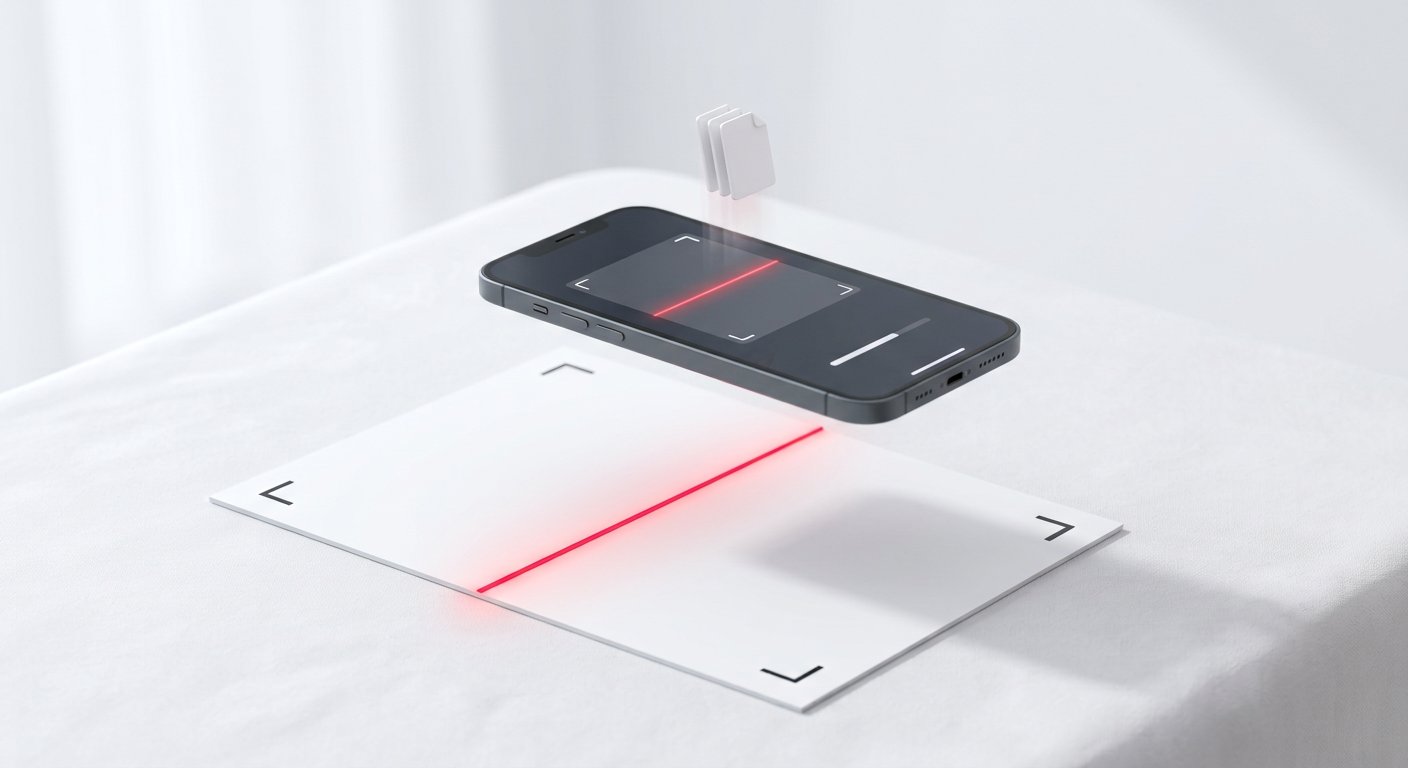
Two engines work in sequence. OCR reads glyph shapes into characters and words, grouping them into lines and blocks by position. A layout pass then decides how those blocks map to Word structures: paragraphs, headings by font size, tables where grid lines align, and images where pixels resist reading.
Understanding the pipeline explains every surprise. A table becomes plain text when its grid lines are faint, because the layout pass never saw columns. A two-column notice reads across columns when the gap is narrow, because block grouping merged them. The source image, not the converter, decides most outcomes.
Prep: the sixty seconds that decide the layout
Flat, square, lit, cropped: four checks before converting. A curved page makes lines bow and OCR mis-group them; photograph from directly above with the paper pressed flat. Shadows across a column read as grey text on grey; face the light source, never side-light. Crop to the document so the engine spends no capacity on desk and fingers.
Resolution has a floor and a ceiling of usefulness: under roughly 150 DPI small type dissolves, over 600 DPI gains nothing and slows everything. A phone photo of an A4 page taken carefully sits comfortably in the sweet spot, which is why phone-first workflows beat cheap scanners for single pages.
Running the conversion in the browser
Open the image in an in-browser image-to-Word tool: the OCR model runs on your device after a one-time download, so contracts, medical pages and salary slips never upload anywhere. Choose the output as .docx, wait for the layout pass, and download.
Open the result in Word or any compatible editor and look at structure before content: are headings headings, are tables tables, did the column order survive? Structure fixes take a minute now; discovering structural failure after editing for twenty minutes means starting over.
OCR gives you a draft with confidence, not a document with guarantees. Proofread once, always.
Fixing the three things OCR always gets wrong
- Lookalikes: zero for O, one for lowercase L and capital I, rn as m; numbers in amounts and dates deserve a dedicated read-aloud pass.
- Table drift: merged cells and faint grids collapse into spaced text; rebuild the table shell in Word and paste cells in, faster than fighting auto-convert.
- Matras and diacritics: Devanagari matras shift or drop silently, changing words; Hindi content needs word-level attention, not line-glancing.
Everything else, paragraph order, heading sizes, bold emphasis, usually arrives intact from a clean source, which is why the prep minute pays for itself ten times over.
When plain text or PDF is the better destination
Word is right when the document will be edited: a form to fill, a letter to adapt, notes to restructure. For archival, convert to PDF instead, where layout fidelity matters more than editability. For study notes and AI workflows, Markdown carries structure without Word's formatting baggage.
And keep the source image until the converted document has been used once. Re-running conversion after improving the photo is free; re-photographing a notice that has left the noticeboard is not. Multi-page scans belong in a PDF OCR workflow that preserves page order from the start.
Frequently asked questions
Will tables survive the conversion?
When grid lines are visible and reasonably straight, yes. Faint or merged-cell tables collapse into text; rebuild the table shell manually in that case.
Does the image upload during conversion?
Not with an in-browser tool: OCR runs on your device after a one-time model download, so sensitive pages stay private.
Can handwritten pages be converted?
Partially: neat block capitals yield keywords, cursive barely reads. Treat handwriting as retype-with-assistance, not conversion.
We build and test free, in-browser PDF and image tools. Every guide is written from hands-on testing with real files, and updated whenever browsers or formats change.
Image to Word toolAll articles →Do it now, in your browser
Nothing is uploaded. The file is processed on your device and never leaves it.
Open Image to Word →